Private by design
Only you can see it.
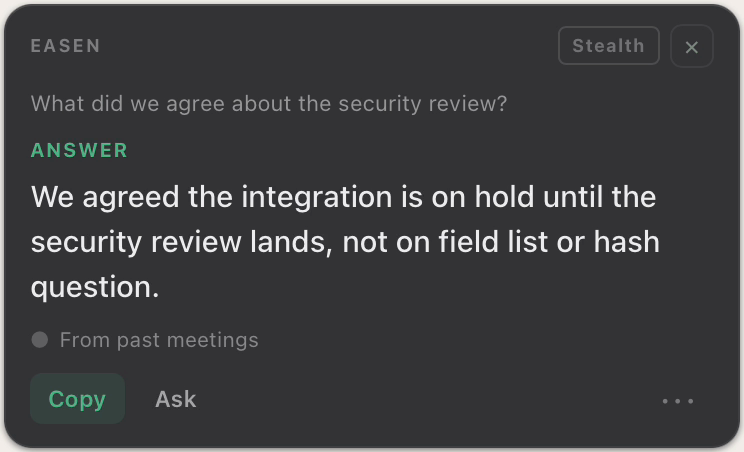
Easen runs on your side of the meeting. Nothing joins the call, and on the Mac the overlay can be left out of anything you share.
Free for 7 days. No card needed.
On the call
They see you. They don't see a bot.
With a meeting bot
- A recorder appears in the participant list
- Everyone watches what they say
- Some clients ask you to remove it
- It needs permission to join every call
With Easen
Nothing joins.
Easen listens on your own computer. There is no extra participant and nothing for the other side to install.
Stealth
Left out of screen shares.
With Stealth on, the Mac overlay is excluded from screen shares and recordings, so you can present and still see your answers.
The details
Your meetings stay yours.
Live audio is never saved
Sound is turned into text as it is spoken, then discarded. Imported recordings are deleted once transcribed.
Never used for training
Easen never trains AI models on your meetings, and never sells or shares them for anyone else to train on.
Private to you
Your transcripts, summaries and history live in your account and nobody else's.
Export or delete
Export your meetings, people and memories, or delete your account, from Settings at any time.
The overlay is on the Mac
Stealth and the floating overlay are in the Mac app today.
The whole story
Read exactly what Easen stores, who processes it, and how to remove it on the Security page.
In practice
How to use it
- 01
Open Easen
It sits beside your call, not inside it.
- 02
Start your call as usual
Zoom, Meet, Teams, or a room.
- 03
Turn on Stealth before you share
The overlay stays on your screen and off theirs.
Next: AI integrations
Your meetings, inside the AI you already use.
Connect Easen to Claude, ChatGPT or any app that supports MCP connectors, and ask it about your meetings, decisions and commitments. It can read your records and never change them.
Walk into your next meeting already knowing.
Free for 7 days. No card needed.